1.00 S08 FAQ &
Troubleshooting Guide
Applies to: J2SE JDK 5.0 & 6.0,
Eclipse 3.2.1 or higher
Last Updated: 2/13/2008
Can’t find a question/solution? E-mail
your problem to davidcw[at]mit[dot]edu.
GENERAL
1. What is the difference between Java 1.6 and 6.0?
Functionally, the two version
numbers refer to the exact same release. Java uses two version numbering
systems. 1.6 is developer number while 6.0 is the product number.
In actuality, the full developer number is 1.6.0, where the trailing “0” is the
update number. The leading 1 is dropped to come up with the product number.
2. Why are
the due times for the Problem Sets off?
Problem Sets are officially
due at noon. We understand that MIT students are busy and that sometimes
computer troubles may prevent timely submission. We have setup Stellar to
automatically give one hour (until 12:59pm) of leniency for problem set
submissions. There is no additional leniency: homework turned in at 1:00 pm is
late.
3. Can I
run Eclipse on Athena?
Eclipse is
known to successfully run on all Sun, IBM, and Dell Athena machines. At an athena shell (prompt):
·
Add
the “eclipse-sdk” locker:
athena% add eclipse-sdk
·
Run
eclipse (Do NOT put an “&” after this command!):
athena% eclipse
·
Wait.
A prompt will appear asking if you wish to accept the default workspace. Hit
ENTER.
·
A
prompt may appear asking to remove/replace a file called “.metadata”. Hit ENTER
·
Wait
for 1-5 minutes depending on network traffic and you will see Eclipse’s
splash.
4. How to
set your Eclipse compiler compliance.
Check to see
which version of Java Eclipse is using:
a. Click “Window” on
the menu bar. In the drop down menu select “Preferences…”.
b. In the “Preferences” window, expand “Java” in the tree.
c. Click “Installed JREs”
d. In the “Installed JREs” pane, remember the
“Name” of the JRE/JDK with a green check mark.
Set
the Eclipse compiler compliance.
e. With the “Preferences” window still open, click make sure “Java” is
expanded.
f. Click on “Compiler”.
g. In the “Compiler” pane set the Compiler compliance level to a number
appropriate for the JRE/JDK Eclipse is using. Remember that version 1.X is the
same as version X.0.
h. Click OK. If a window appears
prompting you to “rebuild” choose OK.
5. I forgot
to put my name on the files in my problem set submission!
If it is BEFORE 1pm on the due
date, resubmit and delete your previous submission (if you are close to the 1pm
deadline, you may want to resubmit THEN delete just to make sure we have one
set of files ‘on-time’). If it is AFTER the deadline, please “add submission”.
Instead of selecting a file, type your name, e-mail, TA’s name, & section
number in the text entry box.
6. The
files in my project are located in a “src” directory.
There is also a folder called “bin”…?
We
do not recommend this file structure
for 1.00.
The “src”
and “bin” directories are organizational: the “src”
directory is intended to hold .java files (the code) while the “bin” directory
holds .class files (the ‘runnable’ files). To keep
things simple, we usually recommend the “project” setup, where both .java and
.class files are stored in the same directory, directly in your project folder.
How do you make this change?
With Eclipse running:
·
Choose
Window -> Preferences from the Eclipse toolbar.
·
In the
"Preferences" window, in the navigation tree, expand the
"Java" option and click the “Build Path” option.
·
In the "Build Path" panel, select the “Project” radio button.
·
Click
OK to save your changes.
7. 100Zip
v1.3 reports “zip failed” when attempting to create a ZIP or SUBMISSION ZIP.
If you are on a Windows Vista
machine, 100Zip has compatibility problems with
To deactivate UAC:
·
Go
to the Control Panel -> User Accounts
·
Click on the “Turn User Account Control on
or off” link.
·
Uncheck the checkbox next to “Use User
Account (UAC) to help protect your computer”.
·
Click OK.
·
You may need to restart for the changes to
take effect.
8. How to get line numbers in your Eclipse editor.
With Eclipse running:
·
Choose
Window -> Preferences from the Eclipse toolbar.
·
In the "Preferences" window, in
the navigation tree, expand the "General" option, expand “Editors”,
and click “Text Editors”.
·
In the "Text Editors
" panel, check the box next to “Show line numbers”.
·
Click OK to save your changes.
TROUBLESHOOTING
1. An error
message appears intermittently after running or debugging a Java application:
ERROR: JDWP Unable
to get JNI 1.2 environment, jvm->GetEnv()
return code = -2
JDWP exit error AGENT_ERROR_NO_JNI_ENV(183): [../../../src/share/back/util.c:820]
This error is believed to be a bug in the implementation of Java
6.0 for Windows. It appears after a program has run to completion and is
believed to have no negative side effects. See Bug Report 6476706 for updates:
http://bugs.sun.com/bugdatabase/view_bug.do?bug_id=6476706
2. When
attempting to debug a Java application you get:
FATAL ERROR in
native method: JDWP No transports initialized, jvmtiError=AGENT_ERROR_TRANSPORT_INIT(197)
ERROR: transport
error 202: connect failed: Software caused connection abort
ERROR: JDWP
Transport dt_socket failed to initialize, TRANSPORT_INIT(510)
JDWP exit error AGENT_ERROR_TRANSPORT_INIT(197):
No transports initialized [../../../src/share/back/debugInit.c:690]
The Eclipse debugger supports
both local and remote debugging. The debugger requires access to a port. You
can avoid this problem in some firewalls/virus scans, by adding “javaw.exe” as
an allowable process/application. We are working on a more concise solution.
3. When attempting
to run a Java application you get a window that says “Could not find the main
class. Program will exit” and errors:
java.lang.UnsupportedClassVersionError: Bad version
number in .class file
at
java.lang.ClassLoader.defineClass1(Native Method)
at java.lang.ClassLoader.defineClass(ClassLoader.java:620)
…
This is most
likely the result of a mismatch between the Eclipse compiler compliance level
and J2SE version. See “How to set your
Eclipse compiler compliance” to select an appropriate compiler compliance.
4. When I
select Run -> Debug As, I see “1 Eclipse Application” and “2 Equinox
Framework” instead of “Java Application.”
Make sure you the current
active selection (the last thing you clicked) is either:
a. A window pane with a “main()” method.
b. A “XXX.java” file with a “main()” method in the Package Explorer view.
5. I
accidentally closed XXX view and now I can’t get it to appear or I can’t get it
to look like before I closed it.
All the Eclipse windows/views
are available from the “Window” menu item under “Open Perspective” or “Show
View”. Once you have selected the View you wish to have, it may not ‘dock’ with
Eclipse. In order to get a new view to ‘dock,’ try clicking and dragging its
top bar to the edge of Eclipse’s work area. This should allow the View to
automatically ‘push’ the other Views aside.
6. The
Debugger doesn’t open when I choose Debug As-> Java Application? How do I
open the debugger perspective?
The Debug perspective will not
automatically open. You can open the debug perspective manually:
- Click “Window” on the menu bar. In the drop down menu select “Open
Perspective”->”Debug.”
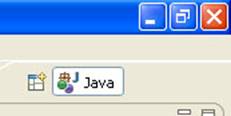
- Or, in the upper right hand corner of Eclipse there is a small
blue/white window icon with a yellow plus sign. Click on this icon for
another way to open the debug perspective.
Once the Debug perspective is
open you should see a “Debug” icon next to the “Java” icon. You can then use
these buttons to switch back and forth between the perspectives.
7. I can
see my program fine in Eclipse, but when I try to Debug it, the Debugger
perspective has a window that claims it “cannot find source”.
The debugger is picky about
where you keep your Java source files. Try moving your entire “workspace” folder
to the default location. For Windows: “C:/Documents and
Settings/USERNAME/workspace”.
8. (MACs) When attempting to debug a
Java application you get:
2007-02-15 22:25:11.791 java[2587] CFLog (0): CFMessagePort: bootstrap_register():
failed 1103 (0x44f), port = 0xf503, name = 'java.ServiceProvider'
See /usr/include/servers/bootstrap_defs.h
for the error codes.
2007-02-15 22:25:11.792 java[2587] CFLog (99): CFMessagePortCreateLocal(): failed to name Mach port (java.ServiceProvider)
This
message is believed to be harmless. Reproduced from: http://lists.apple.com/archives/Java-dev/2005/Jun/msg00546.html
“The
message is a system diagnostic telling you that more than one process tried to
register Services (i.e. the ‘Services’ submenu of your Application menu) with
the process name ‘java’.”- Karl Hsu
9. There are “glitches” in the Preferences window: I
can see the navigation tree, but not the panels.
There appears to be a
compatibility issue between Eclipse and the Logitech SetPoint
drivers (for Logitech brand keyboard and mice). This problem has been reported
for 64 bit Windows Vista, but may occur in other operating systems.
Recommendation: Uninstall SetPoint. The SetPoint drivers
and utility program adds functionality to Logitech brand devices. Uninstalling SetPoint will most likely fix the problem, but may also disable the functionality of convenience keys (i.e.
the media player shortcut key may no longer work).
Second Option: You can
“trick” some of the Preferences window panels into appearing by:
·
In the navigation tree of
the Preferences window, select another panel other than the one you want to
see.
·
Click OK to exit the
Preferences window.
·
Re-open the Preferences
window (Window->Preferences)
·
In the navigation tree,
select the option/panel you originally wanted to view.