Regular Payroll Voucher System on MITVMA
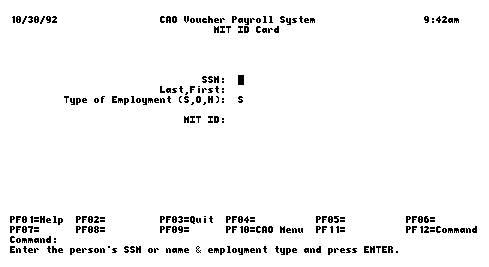
Using the Regular Payroll Voucher (PVR) system on MITVMA, you can enter and approve staff, office, and hourly regular payroll vouchers. You need CAO authorization to use this system.
The initial PVR screen is shown above; the procedure for entering regular payroll vouchers is briefly described below.
- To list/select voucher employees,
- perform ONE of the tasks described below:
- type an asterisk (*) in the SSN field to list your
voucher employees (ones previously paid by electronic voucher) OR
select a specific employee by entering his/her SSN or MIT ID number
or (part of) Last_name,First_name.
Note: If you have not yet paid anyone by electronic payroll voucher, you canNOT list voucher employees. You need to build your list by entering electronic vouchers for "new" employees (see below). In this respect, PVR is unlike the timesheet systems.
- type in the social security (SSN) or MIT ID number for a "new" voucher employee.
- in Type of Employment field, type S (for staff), O
(for office), or H (for hourly).
Note: Use "office" for hourly work performed in an office environment; use "hourly" for blue collar types of work. Use "staff" for professional types of work. - press your key for ENTER.
The list of matching employees for your department displays, as shown below; or for a new (or specific) employee, the voucher screen displays (go to step 3).
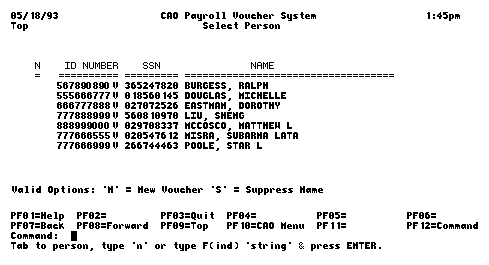
- To select employees from the list,
- Type "N" to the left of each name to enter a new
voucher for.
Note: Press TAB to move the cursor to the top of the O (for Option) column and from field to field. - Press your key for ENTER.
A voucher for the first person selected displays. If the person was previously paid by electronic voucher, some fields are filled in from the prior voucher.
- Type "N" to the left of each name to enter a new
voucher for.
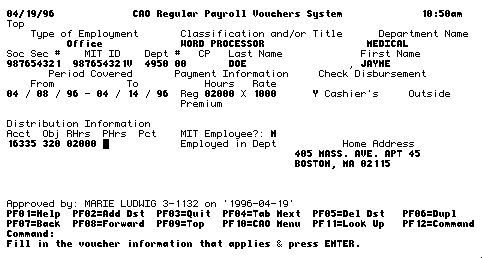
- Enter data for the current voucher, including:
- on all vouchers, type Period Covered, and Hours/Rate
(for office/hourly employees) or Salary/Approx no. of hrs (for staff).
Note: The rules applicable to electronic vouchers are stricter than those applied for paper vouchers. For example, in PVR the Period Covered on office/hourly vouchers cannot straddle weeks or exceed one week (but you can duplicate an electronic voucher and edit it to create another one, see step 4). - for new voucher employees, type Name, Classification and/or Title (i.e., job description), Check disbursement data, etc.
- for all employees, type or correct distribution data,
as needed.
Note: For staff, distribution is in percent; for office/hourly employees, distribution is in hours.
- on all vouchers, type Period Covered, and Hours/Rate
(for office/hourly employees) or Salary/Approx no. of hrs (for staff).
A completed office voucher is shown below.
- Do ONE of the following:
- press PF4 to save this voucher and create a duplicate of it (to use for another Period Covered),
- press your key for ENTER to save the voucher (without a duplicate).
If the distribution data is acceptable, the next voucher displays (one for next employee selected, or the duplicate if you pressed PF4). When you've entered vouchers for ALL employees selected, the initial screen redisplays (shown at top of this file).
- To check your work, type an asterisk in the SSN
field.
The list of existing vouchers displays, as shown below. You can review and modify the vouchers, as needed.
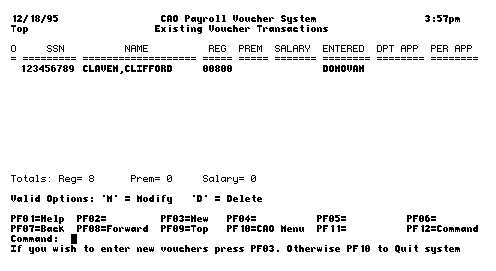
If your userid is set up to approve payroll vouchers, the vouchers you enter are approved automatically (see Dep App column). Otherwise, they need to be approved electronically by a department userid with approval authority. (The department approver enters "A" in the Opt column on the above screen.)
The Personnel Office also needs to approve payroll vouchers (the first voucher for an employee and every 3 months thereafter; see Per App column).
For most weeks, approved vouchers are batched for payment on Monday at 2 p.m.. For weeks with holidays, CAO sends you information about voucher and timesheet deadlines by electronic mail.