Last updated: September 10, 2001
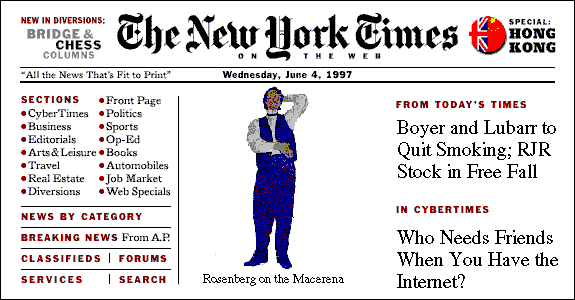
Most of the screens we shoot are browser screens. To ensure that browser screen shots have a consistent look in our documentation, please conform to these specs.
Use Internet Explorer instead of Netscape for all screen shots. In the past, these directions said otherwise, but IE is pretty much the standard at the moment.
By default, most IE browsers should be set up correctly, but just in case you might have customized yours, make sure the preferences under Tools > Internet Options are as follows:
You can use any tool you like to take screen shots as long as you save the screen shot as a GIF87 file -- FrameMaker cannot read GIF89 format. We recommend using Paint Shop Pro.
Things you don't want in your screens (or maybe you do, but don't include them anyway):
If your tool allows you to shoot either entire windows or rectangles within windows (as does Clip 'n Save), the general rule is to shoot the whole window. This minimizes the variation in images within and across chapters and books. If you only want or need one field or button, you have permission to vary the width.
Also, include the scroll bar. Why? So your readers don't get confused and think they're supposed to be looking at a screen that's only three inches tall.
Your picture should not contain IE window dressing (such as the Menu Bar at the top of the window or the scroll bars on the side and bottom). In the Options menu, if you set up your browser to not show all the things it can show, you'll find yourself getting at least another inch of height (if you typically show everything I do).
If a screen is too long to fit in one screen capture, then take two screen shots (one of the top part of the screen and the other of the bottom part). Do not paste the two screen shots together. Have your text state that this is the top part of the screen (and then show the top screen shot) and that this is the bottom part of the screen (and then show the bottom screen shot).
When importing screen shots into your document, FrameMaker asks whether you want to Copy Into Document or Import By Reference. Always choose the latter.
FrameMaker then asks you for a resolution. Select 150 DPI. If the image won't fit into your document at 150 DPI, feel free to select something slightly higher than 150.
Put the anchor for the image's frame on its own line. This sometimes looks a little too roomy on paper, but definitely gives the groovy look for HTML.
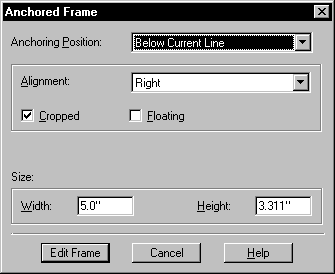
When you import the image, Frame puts it into an anchored frame. The Anchored Frame dialogue allows you to set up the frame at import time and to alter it later:
The settings of choice are:
Once the image is in your document, set its properties in the Graphics-Properties dialogue box:
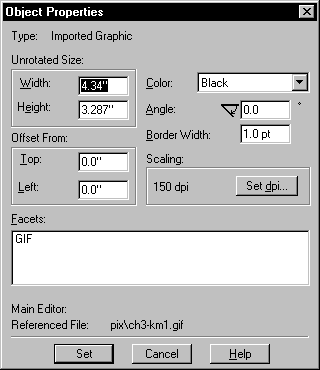
The general rules here are:
Ultra-special exceptions (don't do these everywhere):
Where else, but from the New York Times?