|
|
|
|
|
|
|
|
|
|
|
|
|
|
| This manual and the programs on the enclosed data disks are protected by copyright of 3Dconnexion Inc. /GmbH. Thus without written permission of 3Dconnexion Inc. /GmbH they must not be copied or distributed. Violators will be prosecuted to the fullest extent of civil and criminal laws. The right to these programs and the manual are held by: |
| 3Dconnexion GmbH, Company for 3D Systems, |
| An der Hartmuehle 8, D-82229 Seefeld, Germany |
| Telefon: + 49 (0) 8152 - 9919-0 |
| Telefax: + 49 (0) 8152 - 9919-50 |
| email : help@3Dconnexion.com |
| www.3Dconnexion.com |
| The information in this manual is subject to change without notice. 3Dconnexion Inc. /GmbH shall not be liable for technical or editorial errors or omissions contained herein; nor for incidental or consequential damage resulting from the furnishing, performance, or use of this material. The information in this manual may not be changed without special notification. The instructions in this manual are checked regularly and necessary corrections are included in all subsequent editions. More copies or newer editions of this manual and technical information on the SpaceBall/SpaceMouse can be obtained only from 3Dconnexion Inc. /GmbH. |
| Citation of names in this manual as a rule does not mention existing patents, registered designs or trademarks. Missing corresponding remarks does not justify the assumption that the names might be freely usable. All trademarks are acknowledged where applicable. |
| NOTE:
The use of the SpaceBall/SpaceMouse is restricted to graphical applications only. The company 3Dconnexion Inc. /GmbH is not liable for any damages (including all kinds of damage from lost profit, operating breakdown, loss of business information, data or other kinds of monetary loss), which are due to the use of this 3Dconnexion Inc. /GmbH product or due to improper use. In any case 3Dconnexion Inc. /GmbH's liability is restricted to the amount of money paid for the product. This exclusion does not hold for damages caused by 3Dconnexion Inc. /GmbH intentionally or grossly negligent. In the same way, claims based on general laws and rules of product liability remain untouched. For other applications 3Dconnexion Inc. /GmbH declines any liability or claims for damages. |
| SpaceMouse® , is a registered trademark of the 3Dconnexion Inc./ GmbH |
| SpaceBall® , is a registered trademark of the 3Dconnexion Inc./ GmbH |
| Magellan® , is a registered US trademark of the Logitech Inc. |
| This device uses one or more patents, held by the German Aerospace Research Establishment (DLR). |
| Edited by: 3Dconnexion GmbH, Company for 3D Systems, GERMANY |
|
The SpaceBall/SpaceMouse, as a motion measurement instrument, delivers digital information regarding measurements of all six degrees of freedom instantaneously through its serial port which translates the respective movements accordingly. By pressing a combination of two keys on the SpaceMouse's keyboard, the OPERATING MODES can be installed on the SpaceMouse's own keys/keyboard. The actual OPERATING MODES result from onboard filtering or enhancing of single or grouped digital serial outputs, i.e. "transmit full values for rotation and zero values for all translations". This control option setup is always available via the SECOND LEVEL KEYBOARD (SpaceMouse ONLY!) (to be addressed by pressing key combination * and any key) regardless which platform or application you are currently using (see the bottom label). The first level keyboard or STANDARD CAD KEYBOARD (to be addressed by pressing single keys), on the other hand, is automatically configured with single DEFAULT COMMANDS during the installation of the SpaceBall/SpaceMouse. In some cases, both the STANDARD CAD KEYBOARD settings and the SECOND LEVEL KEYBOARD settings may turn out to be identical - depending on your CAD application. Up until now, neither of the above described MOTION CONTROL OPTIONS was linked to an interface which kept track of the OPERATION MODES you had previously chosen. This was, of course, confusing. In the meantime, however, with the XDRIVER 4.x release, the MOTION CONTROL CENTER (MCC) has been introduced. The MCC is a powerful and easy-to-use graphical user interface which makes it possible for you to enable/disable the SECOND LEVEL KEYBOARD (SpaceMouse ONLY) and control the configured OPERATION MODES by way of software. The MCC also allows you to keep track of the DEFAULT COMMAND settings on the STANDARD CAD KEYBOARD or to MAP other functions to the previous DEFAULT COMMAND keys with the help of an advanced programming utility. We highly recommend that you use this utility because the MCC gives you continuous feedback regarding your own settings and mappings. Furthermore, the MCC opens up a wide range of new configuration settings, which enhance the versatility of this professional 3D controller. |
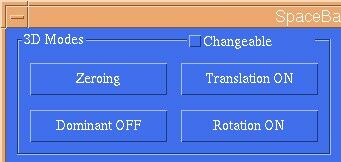
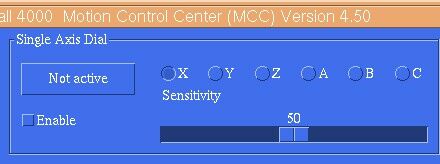
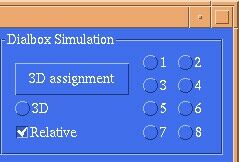
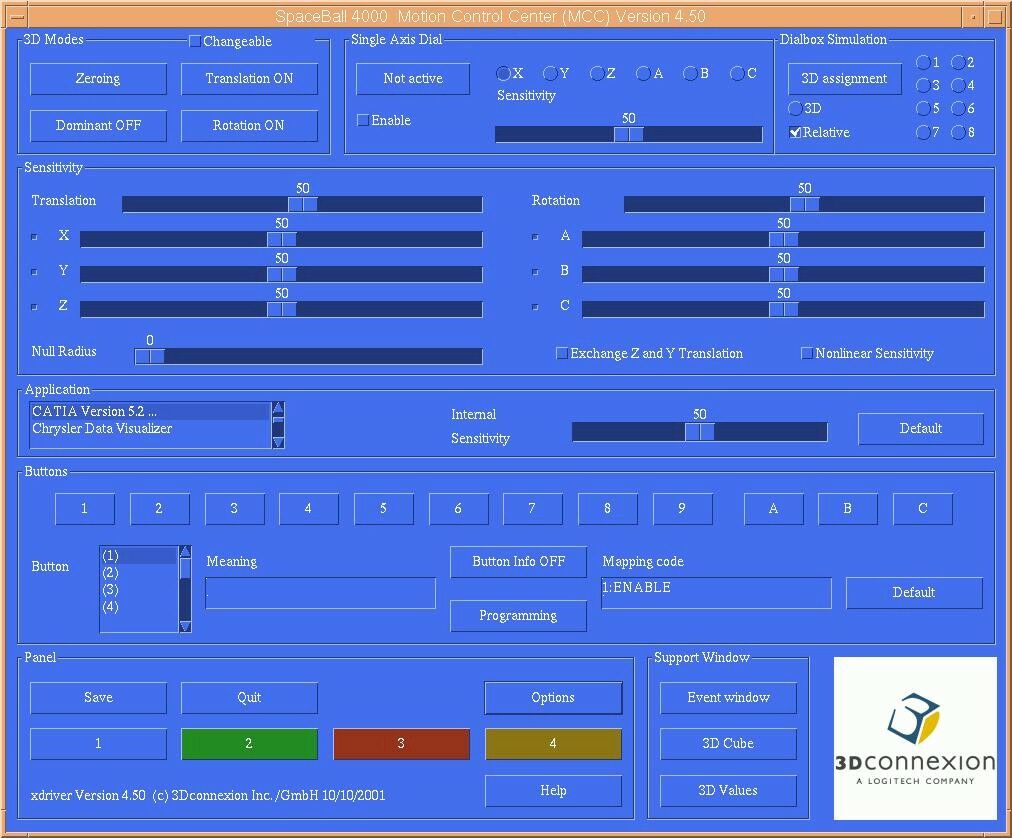
| The SpaceBall/SpaceMouse Motion Control Center (MCC) can be used both to directly configure the hardware settings and to program the standard keyboard. The main window of the MCC, shown above, contains basic features for configuring the SpaceBall/SpaceMouse. |
|
|
|
|
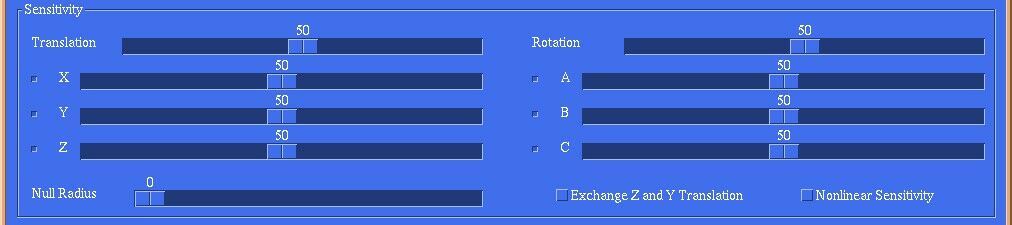
| The bars on this panel regulate/change the sensitivity
of translation or rotation on the whole or, when desired, specifically
for each degree of freedom. In some cases it is preferable to have a faster
responding zoom than the pan motion of the object.
The With some applications it may be necessary to tick Exchange Y and Z Translation. For nonlinear sensitivity see Options Window |
|
|
| All four differently coloured configuration
menus are initially set to address the application chosen during the installation
process. Should you wish to configure your current menu for another application,
just select the right option from the scroll bar menu, execute the necessary
configuration settings, save the panel and return to
your application.
The MCC will automatically detect the application you are actually working with by detecting your serial mouse's cursor position. By pressing the Default button, the defaults for Sensitivity, 3D modes, Single Axis Dial and Dialbox Mode are set. |
|
|
|
|
|
|
|
|
| The softkeys are software buttons in the MCC,
the equivalents to the physical buttons on the SpaceBall/SpaceMouse which,
however, always maintain the original STANDARD CAD KEYBOARD settings. By
selecting a specific softkey with your 2D mouse cursor, you can open an
information window which describes the meaning of the softkey's application
specific default setting.
Clicking on the softkey will always execute only this default setting, whether or not you have remapped the corresponding hardware button on the SpaceBall/SpaceMouse with the MCC. This hardware setting is also shown in the second line of the information window. The pressing of specific keys in sequence on peripheral devices (keyboard, 2D mouse, LPFK, etc) usually results in a specific command in your application. With the help of the button mapping window in the Motion Control Center, any key sequence can be mapped as a unique macro command to any button of the SpaceBall/SpaceMouse. To map a new command onto a SpaceBall/SpaceMouse button, select the button number from the scroll bar menu. The selected SpaceBall/SpaceMouse button's current meaning and mapping code is displayed in the fields "Meaning" and "Mapping Code" next to the button numbers you have chosen. This information is also displayed in the Button Info Window. By clicking on the Programming button, you can open the mapping menu (please refer to the separate programming section) and proceed to remap the button. After remapping a key you must not forget to enter a new description into the "Meaning" field. Pressing the Default button resets the STANDARD CAD KEYBOARD to its default settings. |
|
|
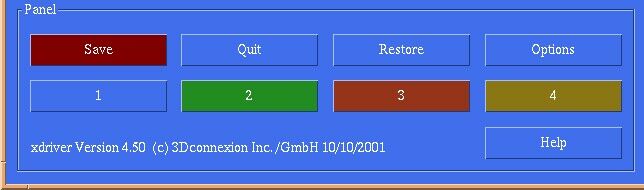
| Click Save to save the current MCC configuration. Click Quit to quit the MCC (note that quitting the MCC does NOT stop the X-Window driver). Anytime changes are made anywhere in the MCC window, the Save button is highlighted red, indicating that the current changes have not been saved. Restore appears when unsaved changes have been made, which can be used to undo any unwanted changes. The four colored buttons numbered 1 through 4 can be used to save up to four independent configurations. The configurations can be for different settings within the same CAD application or they can be associated with different applications (see also Application). The background color of the MCC window changes to match the color of the numbered button of the active panel. Help opens a small window for launching this help file. Options opens the Options window, which contains additional features for controlling various functions and appearances of the MCC. |
|
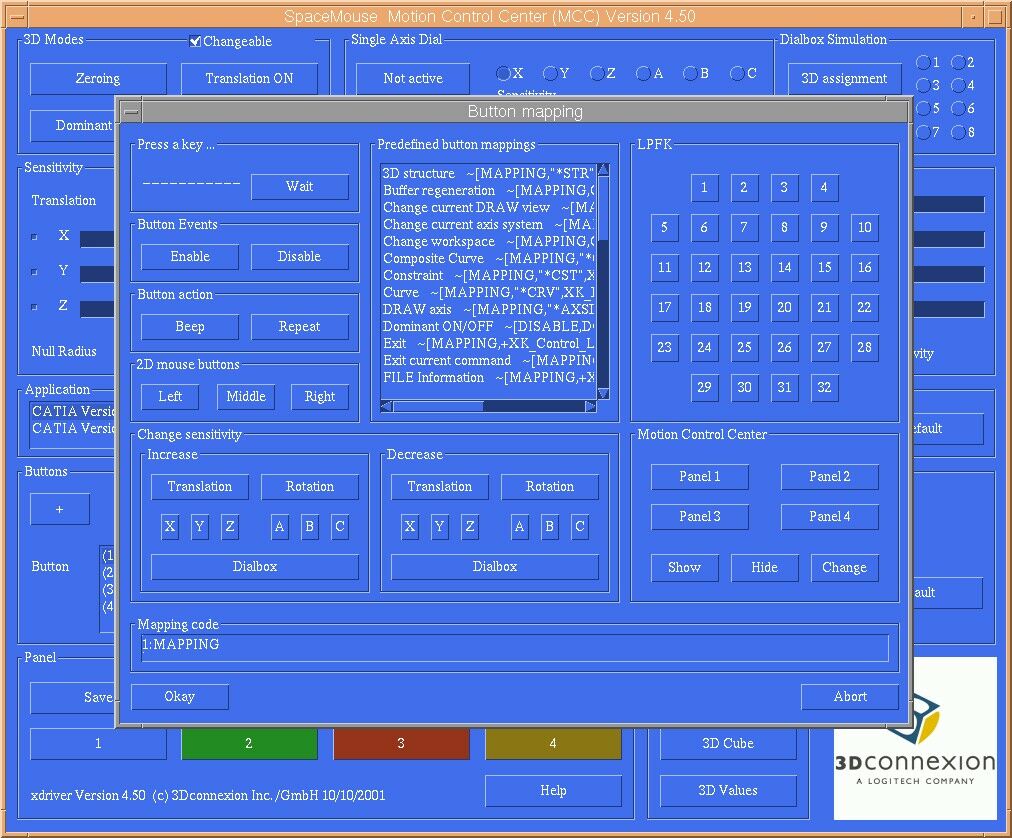
To map a new function to the previously selected key on the SpaceBall/SpaceMouse (refer to button mapping in previous section), you can now either use key command sequences on your keyboard, choose predefined mappings from the window displaying a selection of your application's most current commands or select a button function from the LPFK menu. As for the dialbox simulation, your application will assume the real existence of a LPFK board with all of its functions. You can also select the functions which are mapped onto your 2D mouse buttons. Additionally, by mapping the Beep button to one of the options mentioned above, you can achieve the effect that a single beep will sound each time you press the so-mapped button. By mapping the Repeat button, the device will repeat the command as long as you hold/keep the button pressed. By selecting either the Enable or Disable buttons, the standard CAD keyboard configuration for the respective key/key in question is mapped or withdrawn. A list of predefined mapping codes is displayed in the middle of the window. Click a mapping code to map the function to the selected SpaceBall/SpaceMouse button. Please note that the MCC can not check whether the mapped function is correct. |
|
|
 |
|
|
 |
|
|
 |
|
Use these buttons to map the functions of the three 2D mouse buttons. |
 |
|
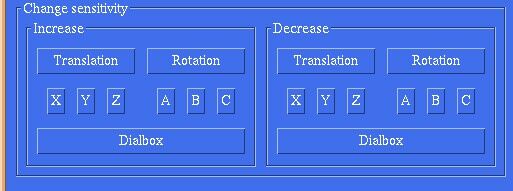
These buttons map the Increase / Decrease Sensitivity functions, either for collective (Translation or Rotation) or individual (X, Y, Z, A, B or C) degrees of freedom. The Dialbox buttons are used to map the sensitivity control of the dialbox mode. |
 |
|
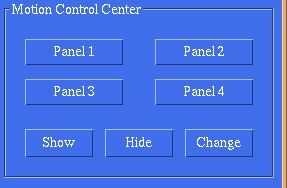
Show causes the MCC window to be brought to the front of the screen. Hide sends the MCC window to the back and Change toggles between front and back. Mapping one of the Panel buttons numbered 1 through 4 switches the MCC to that panel number. Note that by mapping one of these panels to one specific SpaceBall/SpaceMouse key and by repeating this mapping procedure for all four panels, you will gain/have instantaneous access to all four panels and their specific settings simply by pressing the selected SpaceBall/SpaceMouse key. |
 |
|
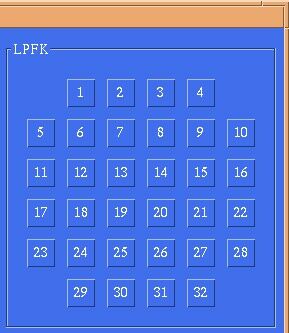
The functions of the 32 buttons correspond to the default functions that your CAD application normally assigns the buttons of an LPFK. Use these buttons to map the corresponding LPFK functions. Note that some IBM and SGI systems may require a separate installation procedure to activate the LPFK simulation mode. (See the manual.) |
 |
|
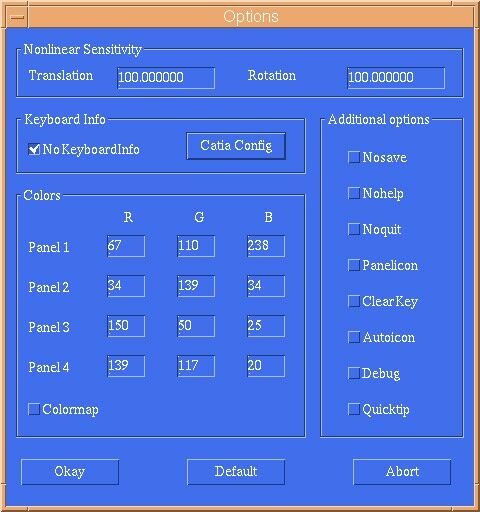
Click Options in the Panel section of the MCC main window to open the Options window. This window contains additional features for controlling various functions and appearances of the MCC. |
||||
|
 |
|||
| Additional Options
Ticking No Save, No Help or No Quit hides the corresponding buttons in the Panel section of the MCC main window. When Panelicon is ticked, a small colored dot corresponding to the color of the active MCC panel appears in the desktop icon of the minimized MCC window. Ticking ClearKey ensures that all keys pressed in the button mapping codes are released after the mapping is executed. Ticking Autoicon causes the MCC desktop icon to always appear in front of other open windows. Debug reports debug information, if the driver is started from the command line. The Quicktip function may be toggled on and off with the Quicktip tickbox. |
||||
| If you have any questions or comments about the SpaceBall/SpaceMouse or this manual, please contact the persons or organizations listed below. | |
| America and Asia: | 3Dconnexion Inc. |
| 30600 Telegraph Road, Suite 4290 | |
| Bingham Farms, MI 48025 | |
| Telephone: | (248) 331-1999 |
| Telefax: | (248) 331-1399 |
| Marketing & Sales: | Joyce Ouellette |
| Telephone: | (248) 331-1999 |
| E-Mail: | Joyce_Ouellette@3Dconnexion.com |
| H E L P | help@3Dconnexion.com |
| Europe: | 3Dconnexion GmbH |
| An der Hartmuehle 8 | |
| D-82229 Seefeld, Germany | |
| Telephon: | +49 (0) 8152-9919-0 |
| Telefax: | +49 (0) 8152-9919-50 |
| Marketing: | Jan Larsson |
| Telephon: | +44 (0) 1628 894 320 |
| E-Mail: | Jan_Larsson@3Dconnexion.com |
| Sales: | Ralf Stetter |
| Telephon: | +49 (0) 8152 9919 0 |
| E-Mail: | Ralf_Stetter@3dconnexion.com |
| H E L P | help@3Dconnexion.com |
| You can find the latest driver versions and various other information about SpaceBall/SpaceMouse available for access on our homepage located on the world wide web at the following homepage address: http://www.3Dconnexion.com | |