Complete these setup steps by Thursday, September 10 at 9pm.
If you run into issues, get help on Friday so you are ready for class on Monday.
Complete these setup steps by Thursday, September 10 at 9pm.
If you run into issues, get help on Friday so you are ready for class on Monday.
We will use VS Code for collaborative in-class exercises, and we also recommend it in general for working with Dafny.
Install Visual Studio Code by following their instructions. (VSCodium will also work if you prefer it.)
Warning ! VS Code, like so many programming tools these days, very much encourages you to use its AI features.
You will not benefit from the assignments in 6.S057 if you have AI tools complete them for you. For that reason, using AI tools to write code or proofs is prohibited by the course acadmic integrity policy.
VS Code has a somewhat complicated system of profiles, user settings, and workspace settings, so if you want to use VS Code with AI in one context and without AI in 6.S057, you will need to do the work to set that up.
To disable most AI features in VS Code, use the chat.disableAIFeatures setting:
chat.disableAIFeatures.Check the box to “Disable and hide” AI features.
If you have other AI extensions installed, you will need to disable them separately.
Install Dafny by following their Visual Studio Code instructions under “Using an IDE.”
You will also need to run Dafny from the command line.
One option is to use the dafny executable that will be downloaded by the VS Code extension when you first open a .dfy file. The directory is printed in the VS Code “output” pane when this happens. If you see, e.g.:
/home/tim-the-beaver/.vscode/extensions/dafny-lang.ide-vscode-3.5.4/out/resources/4.11.0/github
Then dafny is at:
/home/tim-the-beaver/.vscode/extensions/dafny-lang.ide-vscode-3.5.4/out/resources/4.11.0/github/dafny/dafny
Use this option if you understand how to run that executable on the command line.
Otherwise, please follow the instructions under “Install the binaries from the GitHub releases.” You do not need to run quicktest.sh, we will run our own simple test of the Dafny installation below.
Install Constellation for 6.S057 by following the instructions.
When you open 6.S057-constellation.code-workspace in VS Code, you should see “Collaborate: 6.S057” at the bottom of the window.
Click Collaborate: 6.S057.
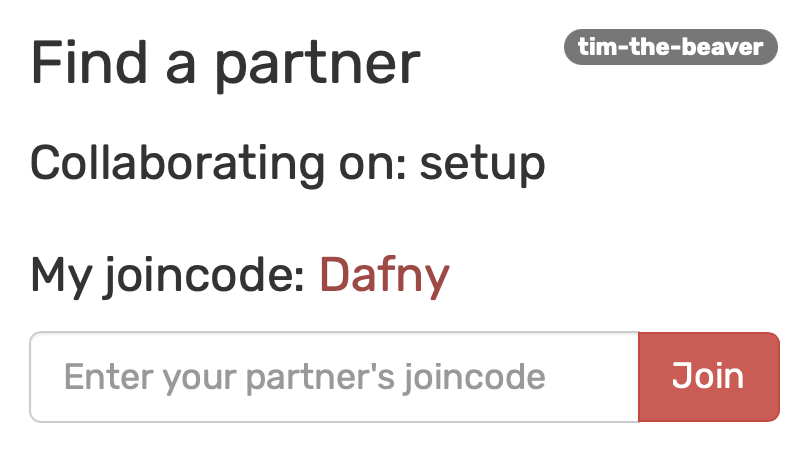
Your web browser should open and ask you to log in. You should arrive at a “find a partner” page for collaborating on “setup.” We will do the in-class exercises in pairs, so the system assumes you want to find a partner.
You will see setup on the “find a partner” page only before class 2. As class 2 approaches, it will switch to the class 2 exercises project — and then class 3, etc.
If you don’t see the “find a partner” page, please ask for help to fix the problem before class 2.
But you don’t need a partner right now. Close the “find a partner” page and go back to VS Code.
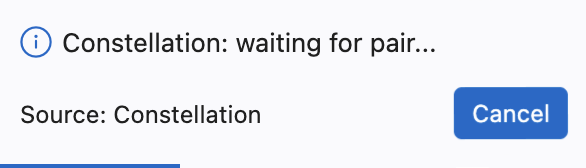
You should see the notification “Constellation: waiting for pair…” Click Cancel.
In the Explorer sidebar, you should see the folder setup has been added to this workspace, containing hello.dfy.
Open setup/hello.dfy.
The Dafny VS Code extension should activate and, after a short delay, give you a green checkmark next to method Main.
In a terminal, cd to the setup folder and run:
dafny run hello.dfyDafny will verify the code, but there is not much to verify, so you should see:
Dafny program verifier finished with 0 verified, 0 errorsAnd then it will compile and run the code, outputting:
Hello, world!