
 |
 |
 |
 |
Responding to Meeting Proposals
You can respond to a proposed meeting by agreeing to attend, declining the invitation, or deferring your decision. External guests cannot respond to meeting invitations.
To respond to a meeting proposal:
- From the
Viewmenu choose Messages.- Select the message and click Open (or double-click the message).
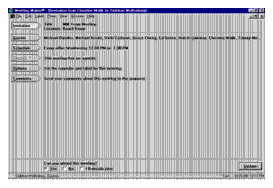
- Click the
Guests,Schedule, andAgendabuttons to see information about the proposed meeting.- To save the agenda as a text file, click
Agenda, then clickSave asand type a file name for the agenda.- Click
Options(optional) to specify a reminder and/or label for this meeting.- Click
Comments(optional) to add a comment to your response.- To accept, click
Yes, thenReply. The proposal window closes and the meeting appears on your calendar.
- To decline, click
No, thenReply. The invitation moves to the Your Refusals folder in your Messages window. You can open it and change your reply if you decide to attend.- To postpone your reply, click
I'll decide later, then clickReply. The proposal window closes leaving the invitation on your Active Messages list. Your calendar remains unchanged.Note: When a meeting is proposed outside normal work hours, or in conflict with another scheduled event, "No" becomes the default response. You can change the response to "Yes."
- Clicking Reply sends your response to the meeting proposer.
| ON Corporation http://www.on.com |
| |
|
|
|