The following provides an outline of how the Kerberos Template project file was created using VISE 4.6.1 . It matches the Kerberos Installer r3.1 changes.
You should also read the Kerberos Installer Docs, which describe the Kerb Template.vct as a finished product.
(1) Launch VISE and create a new project archive.
(a) Go to the "File" menu and choose the "New Archive..." item. A new project window appears.
(b) Go to the "File" menu and choose "Save"; give the project archive a name, for example, "Kerberos Template.vct". You have to save now because VISE will complain if you try to do some of the steps below before saving the archive at least once.
(2) From the "Archive" menu, choose the "Edit External Codes" item. Type in the data exactly as below - upper and lower case is important.
FYI: Before creating any new externals, please refer to the table that lists all existing codes.
(a) Click the "New Code" button, and fill in the following information, then click "OK".
Name: ftp
Resource Type: IMid
Resource ID: 6000
Ref Con: 0 (or blank) (not used)(b) Close the "Code Resources" dialog box by clicking on the "OK" button.
NOTE: This step does not actually load the resources, it just creates placeholders for them.
(3) Now you need to tell VISE where it can find the code resources file to include in the final installer application. This is very important, since the installer won't run without them!
(a) Go to the "Archive" menu, and choose the "Archive Settings" item. The Archive Settings dialog appears.
(b) Click on the "Advanced" tab. Click on the "Set Resource File..." button in the "External Files" section near the bottom of the dialog. A standard open file dialog appears.
(c) Navigate to find the file called "FTP Installer Code Resources". It is probably located in the folder called "FTP Installer Tools". Select the file, and click on the "Open" button. The pathname should appear in the box to the right of the "Set Resource File..." button.
(4) Still in the Archive Settings dialog, with the "Advanced" tab selected:
(a) In the "External Codes" section, make sure "ftp" from the "Before Install" popup menu is selected.
This is a very important step. At startup, the ftp code perform two tasks:
- It will open the FTP connection to the server; and
- The ftp code will check for the existence of a file called "notice.txt" (suggested name). If that file exists, then the contents of the file will be displayed to the user, and the user is given the opportunity to cancel the installation. This file would typically be added to the ftp files directory when the installer has become out of date. (See "Building a MacOS Installer - Setting FTP options" for information on how to set the path and name the installer will use to look for this file.)
(b) Still in the "External Codes" section, make sure "ftp" from the "After Install" popup menu is also selected.
This tells the installer to close the FTP connection with the server after all the files have been transferred.
(c) Close the "Archive Settings" dialog by clicking on the "OK" button.
(5) From the "File" menu, choose the "Preferences" item. Make sure that the item "Archive Original Instead of Alias" is not checked.
(6) Drag the alias files that you created using MakeAlias to the VISE project window.
If you ever remake an alias file, VISE does not automatically update its prjoject file. See Building an Installer - Updating an Installer for details on how to update your project file.
(7) In the VISE project window, for each file that you just added:
(a) Select the file in VISE project window.
(b) From the "After Installing" popup menu, select the "ftp" item.
(c) Select the options from the "Install To", "Replace", and "Gestalt" popup menus as appropriate.
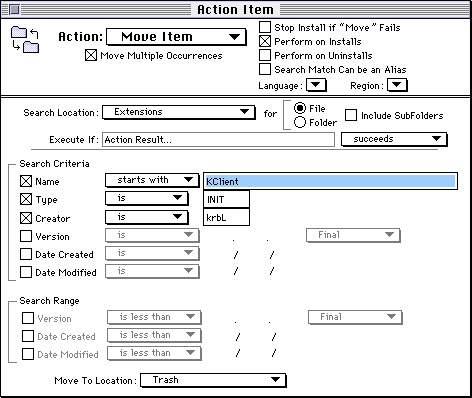
(8) Click the "New Action Item" button in the project window to make a move action item (see illustration) to remove any existing KClient extensions in the "Extensions" folder to the Trash. The previous versions of KClient (1.1b1, 1.5, 2.0d2) were extensions, so they won't automatically get replaced when the control panel version (1.62 and greater) is installed.
(9) Click the "New Action Item" button in the project window to make another move action item to remove any existing KClient extensions in the "Extensions (disabled)" folder to the Trash.
(9a) Make another Move action item that checks the "Control Panels" folder for any out of date Control Panel versions of KClient. It checks by looking for file(s) whose name starts with "KClient", has a file type/creator of cdev/krBL, has a version less than 1.7.6.
(10) Make two more Move action item to remove any existing extensions named Kerberos Client - one that looks in the "Extensions" folder and one that looks in the "Extensions (disabled)" folder, and moves them to the Trash. This is a really old version of KClient.
(11) If your installer is including them, create two new packages named "KClient" and "Kerberos 5":
KClient
* Click on the "KClient" icon to select it.
* Select "New Package" from the "Packages" popup menu; the "Edit Package" dialog appears. Type "KClient" into the "Name" field. Check the "Restart after Installing" checkbox. This option forces all other applications to quit when the installer is run, and forces a restart at the end of the install. Both of those operations are preceded by an alert that gives the user the opportuinity to cancel. Click on "OK" to close the dialog, and "OK" again to dismiss the Packages listing.
* Click on the other KClient files ("Kerberos Client Preferences" and the Move Action Items for KClient/Kerberos Client) and select "KClient" from the "Packages" popup menu ("Easy Install" should already be selected).
Kerberos 5
* Click on the "kerb5.ini" icon to select it.* Select "New Package" from the "Packages" popup menu; the "Edit Package" dialog appears. Type "Kerberos 5" into the "Name" field. Check the "Restart after Installing" checkbox. Click on "OK" to close the dialog, and "OK" again to dismiss the Packages listing.
* Click on the other Kerberos 5 files (GSSLib, Kerberos Utilties, associated action items) and select "Kerberos 5" from the "Packages" popup menu.
* Kerberos 5 generally should not be included in Easy Install package (and thus you should deselect the Easy Install package from the "Packages" popup for each Kerberos 5 item). However, in the SAP installer, both KClient and Kerberos 5 files are part of the Easy Install.
(12) Save your work and create the installer:
(a) Choose "Save" from the "File" menu.
You should notice that the numbers in the "Compressed Size" column of the project window will be zero, and the "Percent Smaller" will be very close to 100%. If these numbers are significantly different from what you see, then you might have added the original files rather than the alias files.
(b) Then choose "Build Installer" from the "File" menu. (Enter a name for your installer; the "segment size" option should be left as "Fill Disk".)
If the installer says, "There are resources in the file 'FTP Installer Code Resources' which are not in the valid range of 5000-10000. Please renumber these items and try creating your installer again.", do not worry. This is normal.
Go to the "Archive Settings" dialog, click on the "Advanced" tab, and make sure the "Allow Installer Resources To Be Replaced" button in the "External Codes" section is checked. The "FTP Installer Code Resources" file includes several resources that require this box be checked for inclusion.