MIT WebMail Upgrade, March 2004
In March 2004, the MIT WebMail service was upgraded to a more recent stable version of the IMP software and included feature upgrades requested by the MIT Community.
WebMail, like any software, has room for improvement. Over time,
it has undergone changes to include new features, fix problems, improve
its ability to handle the number of simultaneous users it can serve,
improve its usability or speed, and similar reasons.
Frequent customer requests included the following:
- Better handling of session timeouts to prevent loss of composed
mail
- Ability to save full name and signature across sessions
- Ability to delete all the messages in a folder without viewing
them
- Option to open compose window in same browser window to send email
using a PDA
|
|
Features in the "Red" WebMail Upgrade
|
|
Overall
|
Revised, simpler color scheme. Uses cookies for session management.
|
|
Login
|
Simpler page, prominent help links, language option to
change button/links to language of choice.
|
|
Inbox
|
Mailbox listing shows mail quota and can be set to show last
login to WebMail. Can set and save options for default sorting
criteria & direction, messages per page in the mailbox view & showing
mailbox legend.
|
|
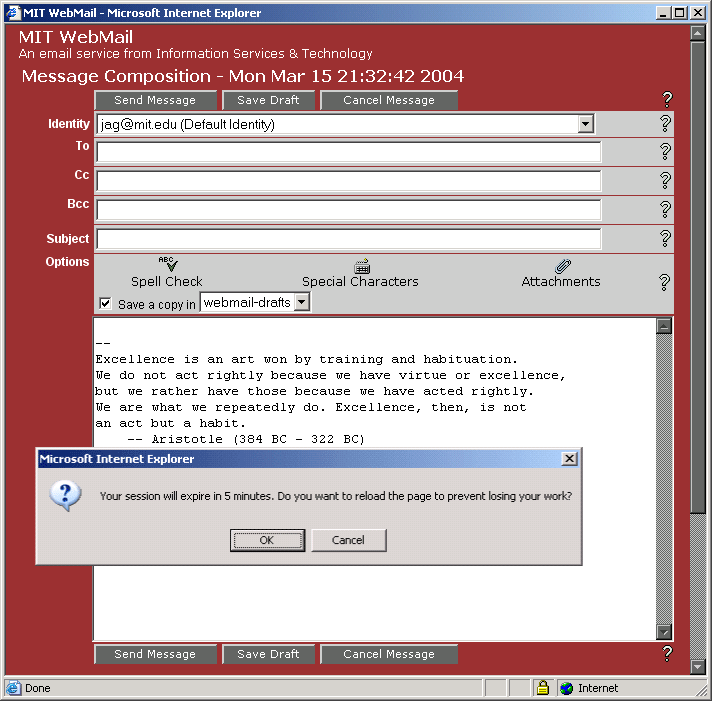
Compose
|
Can set and save options for multiple identities, to include original
message in a reply, compose messages in a separate or same window,
display confirmation after sending a message, close the compose window
after saving a draft. Compose window will give you a dialog box indicating
your session is 5 minutes from expiring,
prompting you to reload the page to prevent losing your work and continue
editing. A similar message will show when the session is 1 minute from
expiring.
|
|
Folders
|
New folder options: Check Folder(s) for New Mail, Do Not Check Folder(s)
for New Mail, Empty Folder(s). May be useful for SpamScreen folder.
|
|
Options
|
Many more options are available, which can now be set and saved
across sessions. Identities available to save full name, reply
to & signatures. Multiple identities can be saved and deleted. Filters can
be created & applied to move mail to new IMAP boxes. Preferences can
be set for how email is deleted, automatic maintenance, display
options, and more.
|
SESSION MANAGEMENT
Users who will check email on the same machine throughout the day with
WebMail can set their mailboxes to refresh more frequently to keep their
session alive. The default session time is around 25 minutes.
PERSONAL INFORMATION: name, address, and signature
To change the name, address, and signature that people see when
they read and reply to your email, select the Options screen and the Personal
Information link. The default identity will be listed first, and can be
edited by selecting "Edit your identities". You will need to
select Default identity in the drop down menu, and then enter your personal
information in the following fields. Be sure to save your edits by selecting
Change or Create at the bottom of the form.
LANGUAGE
Most of the instructions will change to the language selected, including
the session warning screen.
FILTERS
Filters can be created on the To, Cc, From, Subject & Body fields; matching
messages can be deleted or moved to another IMAP folder. NOTE: cannot filter
on X-Spam-Score score since it does not occur in one of those fields.
DELETING AND MOVING MESSAGES
"Yellow" WebMail returns to the mailbox listing after deleting, moving,
or copying a message by default; this can now be set by the user. Users
may also select to move messages to the Trash folder instead of marking
them as deleted.
MAINTENANCE OPERATIONS
Users can set automatic operations to manage sent-mail folders and purge
Trash folder. By default, nothing is set to happen.
DISPLAY OPTIONS
Allows users to set a number of sorting and display criteria for the mailbox
and compose screens.
MESSAGE COMPOSITION
Allows users to set text wrapping in the composition window, to include
the original message, compose messages in a separate window, display confirmation
after sending a message when composing mail in the same window, and where
to save drafts.
LOGIN TASKS
Allows users to show last login time and which screen to display upon login.
NEW MAIL
Users may refresh their mailboxes to check for new mail every 30 seconds,
every minute, every 5 minutes, every 15 minutes, every half hour, or Never.
Users may also have the browser "pop-up" notification of new mail, with
an indication of how much new mail is received.
[Back to top]
|