|
|
Build a survey in 4 steps!
Add survey questions.
- Click on the Questions tab

- Click add question

Note: The add question button is located in the lower right
portion of the QTools window.
- Highlight 'Type question here.', then enter a question


- Choose an Answer data type (select one)
General (unrestricted)
Response can contain text or integer.
Integer only
Response can only contain an integer.
- Choose an Answer type (select one)
Text field (one-line)
Default character width: 50 (no limit).
Use a text field for questions that require short answers. The width of the
text field will determine how wide a question set will display to the responder.
Text area (multi-line)
Default character width: 50 (no limit)
Default number of lines: 4 (no limit)
Use a text area for questions that require long answers or for comments. Once
the number of lines is exceeded, a scroll bar will appear on the right side
of the text area automatically. The width of the text area will determine how
wide a question set will display to the responder.
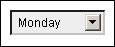
Drop-down menu
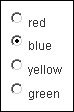
Radio button
Check box

- To accommodate more than 5 item labels, click More Choices

- Click Cancel, Add Another Question, or Finish
Import survey questions.
|