QTools Users Manual
- Build a survey in 4 steps!
- Workspace
- Folder Management
- Survey
- Add Question Set
- Add Question
- Add Text
- Delete Question Set
- Delete Question
- Delete Text
- Edit Question
- Edit Text
- Export Survey Results
- Import Questions
- Invite Participants
- Move Question Sets
- Preview Survey
- Rename Question Set
- Response Options
- Set Active/Expire Date
- Sort Questions
- View Survey Properties
- View Survey Questions
- View Survey Results
- View Survey Status
Survey
Set Active/Expire Date
- Click on a Question Set

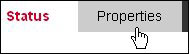
- Click on the Properties tab
Note: As noted in QTools, if the Expire date is left blank, the question set will remain active indefinitely. The dates can be modified by simply typing in a date with a (M/D/YY) format or using the calendar widget.

Type in Active/Expire dates.
- Click inside the textbox and enter a date with a (M/D/YY) format
- Click Cancel or Save Properties
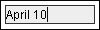
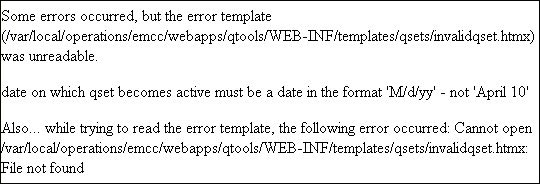
Note: QTools will only accept dates with a (M/D/YY) format else an error message will display. For example, if 'April 10' is entered in the textbox and you click on Save Properties, QTools will display the message below.
Enter Active/Expire dates by using the calendar widget.
- Click on the calendar look-up tool

- Click on a date displayed on the mini calendar
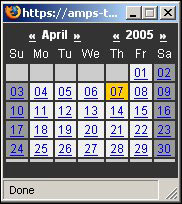
Note: You can jump between months and/or year by clicking on the arrows displayed on the left and right of the date and year. Clicking on a date will close the mini-calendar window and display the date in the Active/Expire date textbox.