|
|
Survey
Response Options
- Click on a Question Set

- Click on the Properties tab

- Response Options - Default Settings
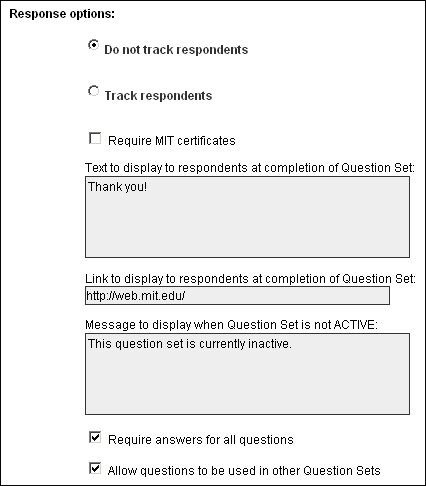
- Do not track respondents: Selected
Does not associate the response with the responder's email login address. The
responder maintains anonymity.
- Text to display to respondents at completion of Question Set
This text will display to the responder after the completion of a question
set (i.e. Thank you!).
- Link to display to respondents at completion of Question Set
After the responder submits his/her response, he/she will be lead to this
URL (i.e. http://web.mit.edu/).
- Message to display when Question Set is not ACTIVE
This text will display when someone attempts to access a not ACTIVE Question
Set (i.e. This question set is currently inactive.).
- Require answers for all questions: Selected
The responder will not be allowed to submit an incomplete question set.
- Allow questions to be used in other Question Sets: Selected
This is a really neat feature. If you routinely create question sets
that have exact or similar questions, this will allow you to import
and use questions from existing question sets. This feature will
save you time and avoid any unnecessary re-typing.
- More Response Options
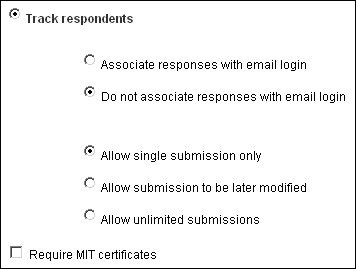
- Track respondents
--Select one.--
Associate responses with email login
Response is associated with the responder's email login address.
Do not associate responses with email login
Response will not be associated with the responder's email login
address. The responder maintains anonymity.
--Select one.--
Allow single submission only
Responder can only submit once.
Allow submission to be later modified
Responder can save entries and continue at a later time.
Allow unlimited submissions
Responders can re-submit response multiple times.
Note: Only the latest submitted response is stored (previous
submitted response will be overwritten).
Require MIT certificates
Responder's machine should have a MIT certificate installed in order
to access the question set.
|