|
|
Survey
Invite Participants
- Click on a Question Set

- Click on the Invite tab

- Click in the textbox and enter the username or email address for
each person you would like to invite
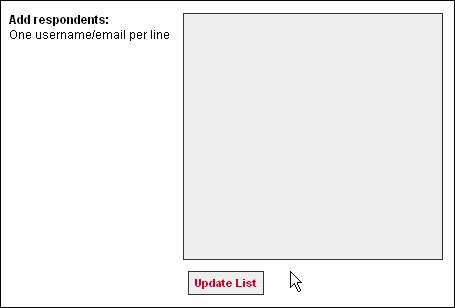
Note: To separate usernames and email addresses, hit the enter
or return key from your keyboard. Each username and email address
needs to be on its separate line as seen below.

Note: If the responder has a MIT email address (e.g. ozaeta@mit.edu),
entering 'ozaeta' will suffice. However, if the responder does not
have a MIT email address, then the person's full email address needs
to be entered (e.g. terence@nus.edu.sg).
- Click Update List

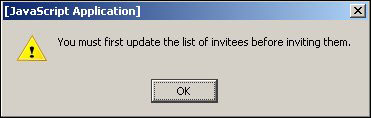
Note: Clicking on Update List will save the usernames and email
addresses. QTools will not permit you to continue until this step is
completed else QTools will display a message.
- Click continue

Note: Clicking on continue will lead you to the screen below.
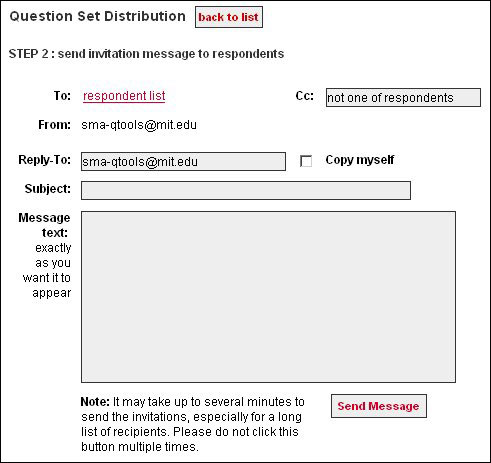
Note: To invite more responders, click Back to list. However,
if you click on back to list, the information that you have entered
on this screen will be erased.
- Enter the following information (if applicable):
Cc
Enter usernames or email addresses to be copied along with this message
Reply-To
An email address that a responder can send an email to.
Default: sma-qtools@mit.edu
Message text
Enter a message for the responder.
- Click Send Message
|